[MS] Code Faster and Better with GitHub Copilot’s New Features: Slash Commands and Context Variables - devamazonaws.blogspot.com
Have you ever wished you had an AI assistant that could help you write code faster and better? That’s what Visual Studio Copilot Chat offers you: an AI-powered pair programmer that can answer your questions, suggest code snippets, explain code logic, and chat with you about your project. You can use Copilot to code faster and better, as it helps you avoid errors and learn new skills. We have added two new features to the latest Visual Studio Copilot Chat extension: slash commands (/) that allow you to direct Copilot to perform specific tasks, and context Variables (#) that allow you to specify a file for Copilot to focus its answer on. We also have several preview features you can get a sneak peek on. [alert type="tip" heading="Download Visual Studio Copilot Chat extension"]The ultimate conversational AI assistant for your coding tasks, download the Visual Studio extension. Compatible with Visual Studio 2022 version 17.8 and higher. GitHub Copilot is free for verified students and for maintainers of popular open source projects on GitHub. If you are not a student or maintainer of a popular open source project, you can try GitHub Copilot for free with a one-time 30-day trial. After the free trial, you will need a paid subscription for continued use.[/alert]
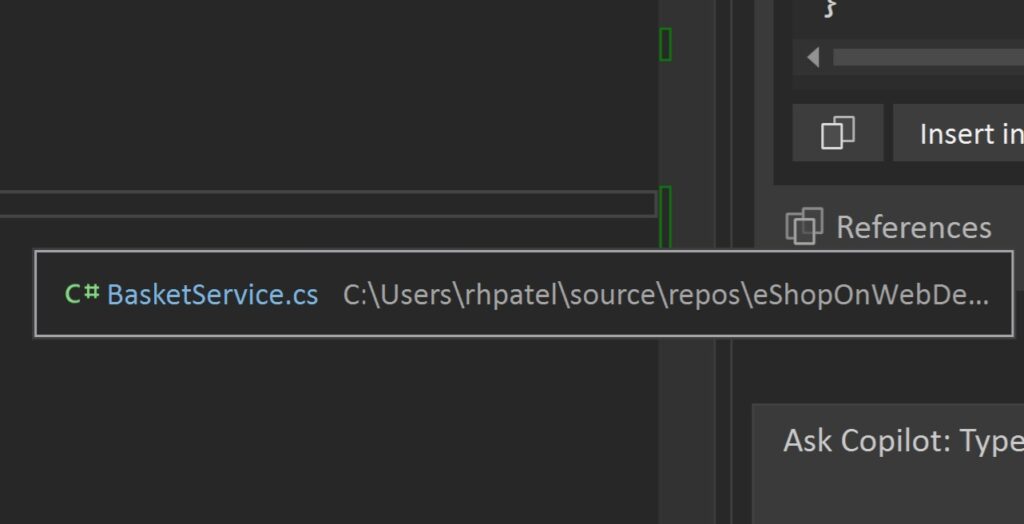
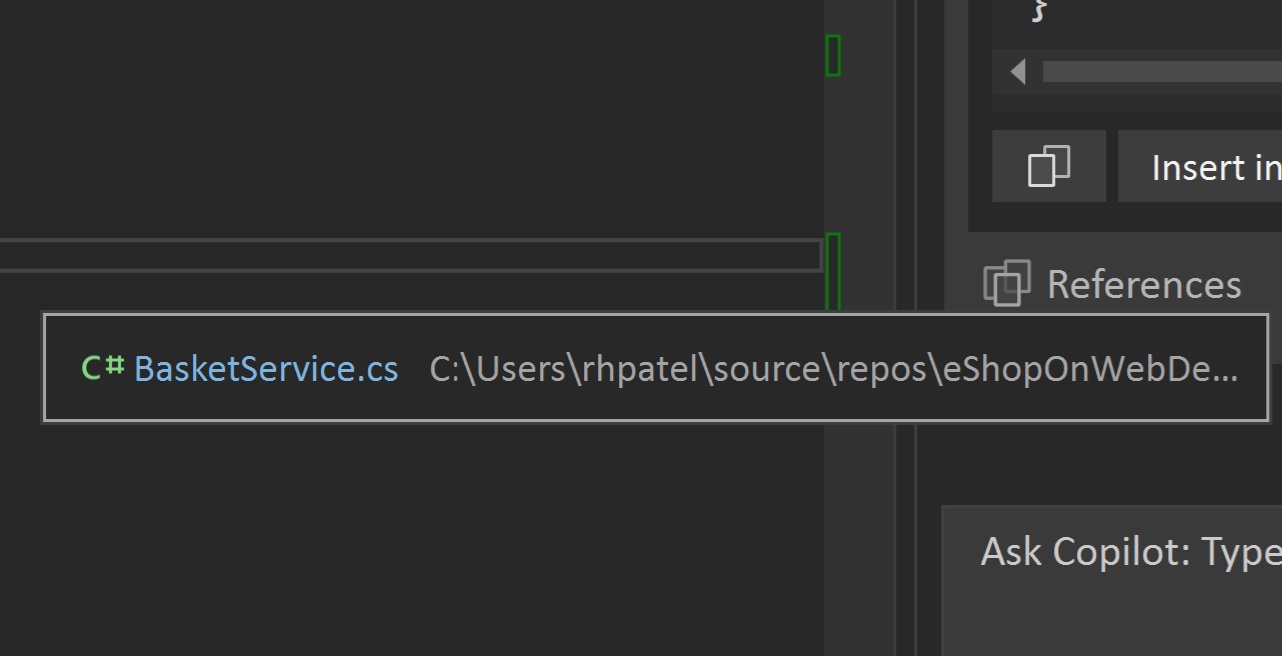
 You can see the referenced files in the chat under the answers. Just look for the link to the references to see what was added to your question. If you click on the links, it will take you to the included content.
  [alert type="tip" heading="Tips & Tricks for GitHub Copilot Chat in Visual Studio:"]Get better answers by setting the context for GitHub Copilot in Visual Studio.[/alert]
Post Updated on January 24, 2024 at 05:00PM
Thanks for reading
from devamazonaws.blogspot.com
Slash commands
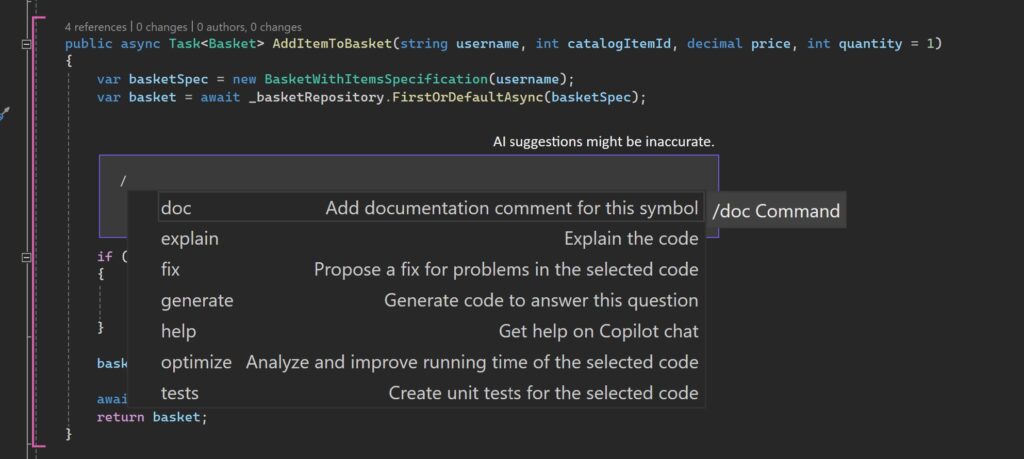
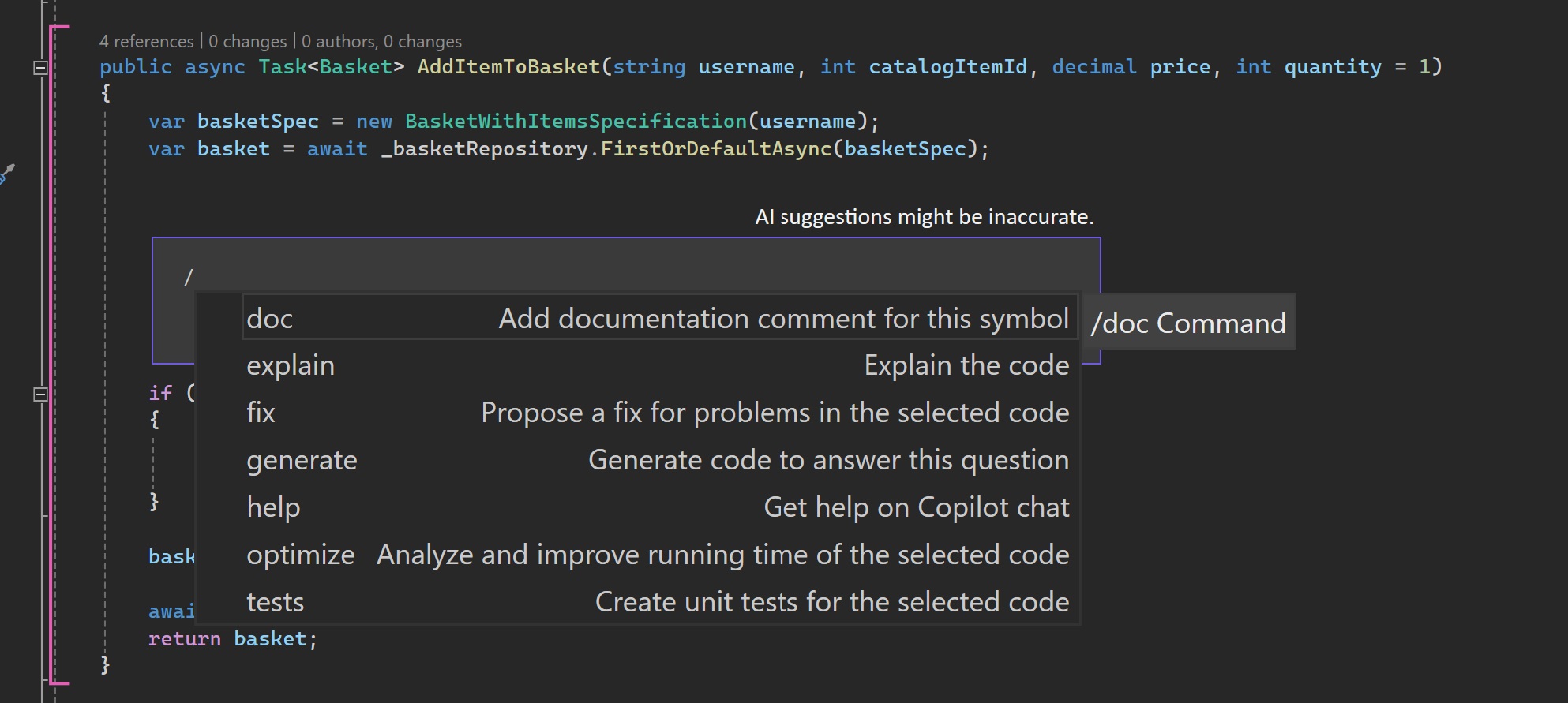
Slash commands are special commands that you can use in chat to perform specific actions on your code. For example, you can use:- /doc to add a documentation comment
- /explain to explain the code
- /fix to propose a fix for the problems in the selected code
- /generate to generate code to answer your question
- /help to get help on Copilot Chat
- /optimize to analyze and improve running time of the selected code
- /tests to create unit tests for the selected code
Context variables
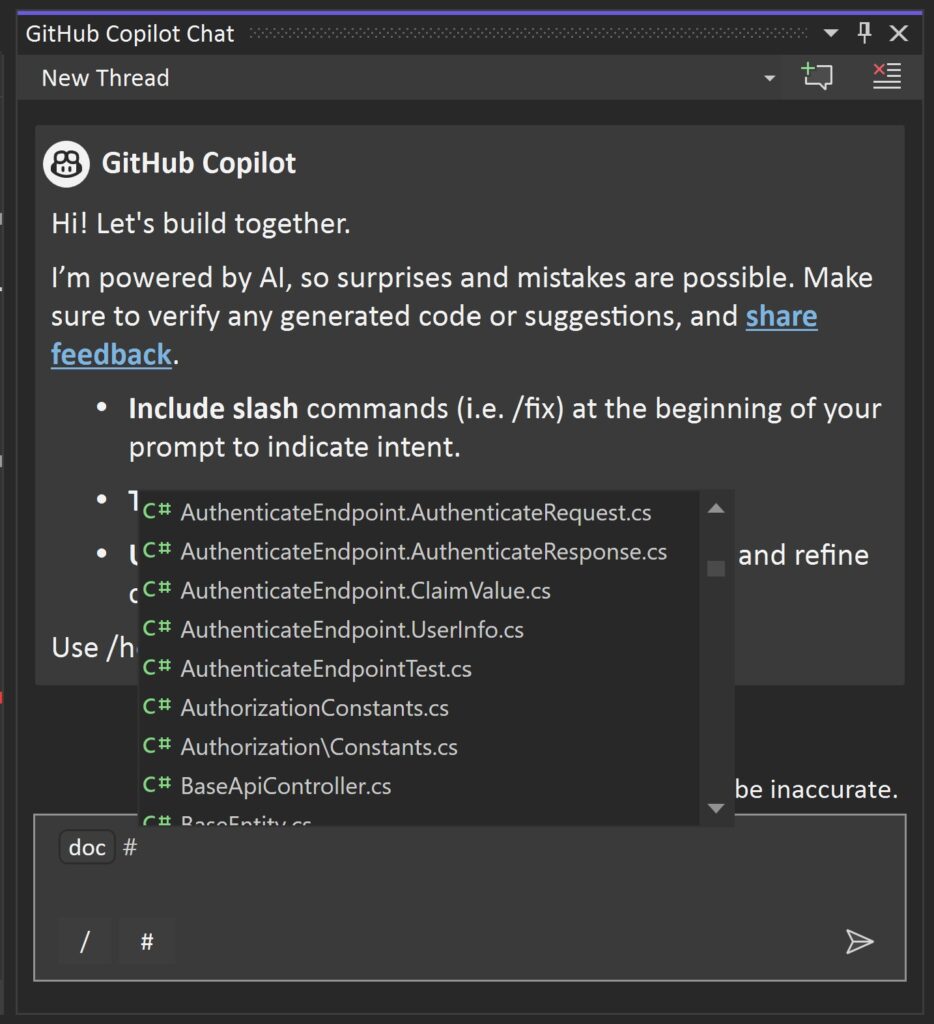
The context variables feature lets you easily add files from your solution to your questions by using the # symbol. When you reference a file, Copilot can access the file content and answer more specific questions about it. For example, you can ask “How does the #Main.cs file work?” or “What is the purpose of the #Calculator.cs file?” and get relevant answers from Copilot Chat. You can add multiple files to one question. This feature saves you time and effort by allowing you to include content from your project without copying and pasting.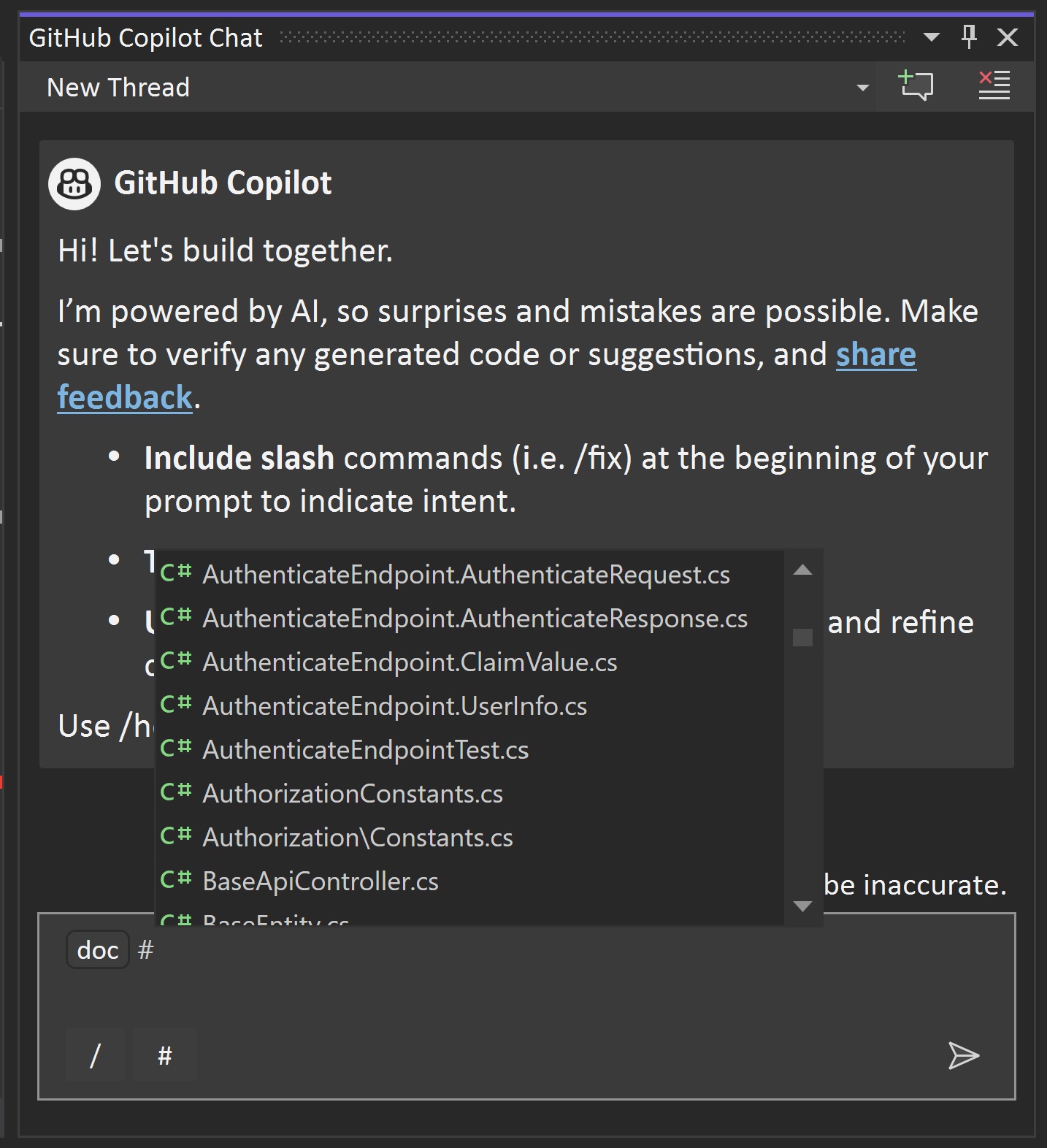 You can see the referenced files in the chat under the answers. Just look for the link to the references to see what was added to your question. If you click on the links, it will take you to the included content.
  [alert type="tip" heading="Tips & Tricks for GitHub Copilot Chat in Visual Studio:"]Get better answers by setting the context for GitHub Copilot in Visual Studio.[/alert]
Preview features
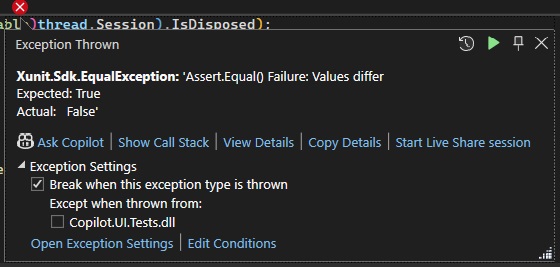
In addition to the main released feature of Visual Studio Copilot Chat, we also have some exciting preview features that you can try out and give us your feedback. These preview features are experimental and may not work as expected, but they can enhance your development experience with Visual Studio Copilot Chat. Here are some of the preview features and their brief descriptions:- Exception Assistant in debugger: Copilot helps you diagnose and fix exceptions in your code. Copilot will provide you with relevant information about the exception, such as the cause, the location, the stack trace, and possible solutions.
- Suggestions for breakpoint expressions: Copilot helps you set conditional breakpoints in your code. Copilot will suggest expressions that evaluate to true or false based on the current context of your code.
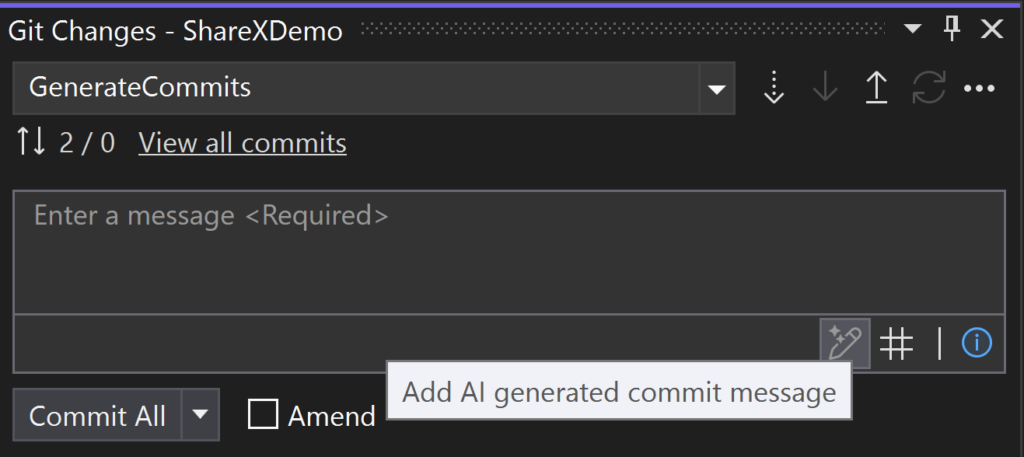
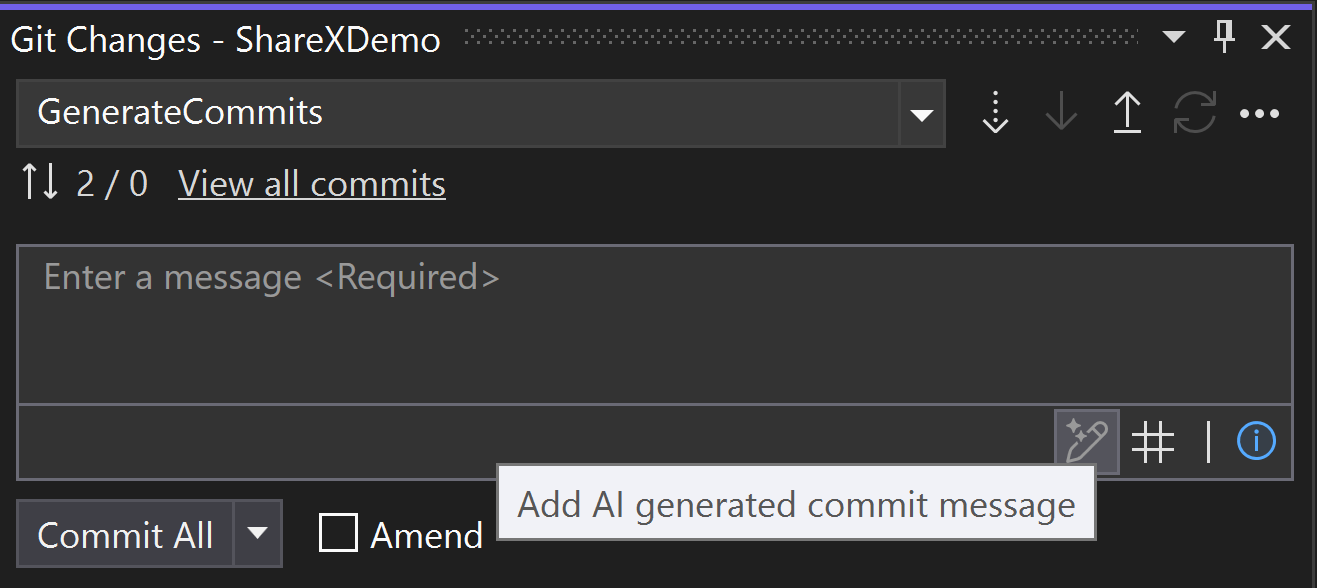
- Commit message suggestions: Copilot helps you describe your set of changes by generating a Git commit message. You can then refine the message with “why” the change was made and commit.
- Solution reference: Copilot helps you find and navigate to the references of your code elements in your solution. By using #solution you are letting Copilot know to search your solution for relevant code to the question. These will than automatically added to the context of your question so copilot can use those for answering your question.
- Suggestions in the Performance Profiler: Copilot helps you optimize the performance of your code. Copilot will analyze the performance data collected by the Visual Studio Performance Profiler and suggest ways to improve the speed, memory usage, and responsiveness of your code.
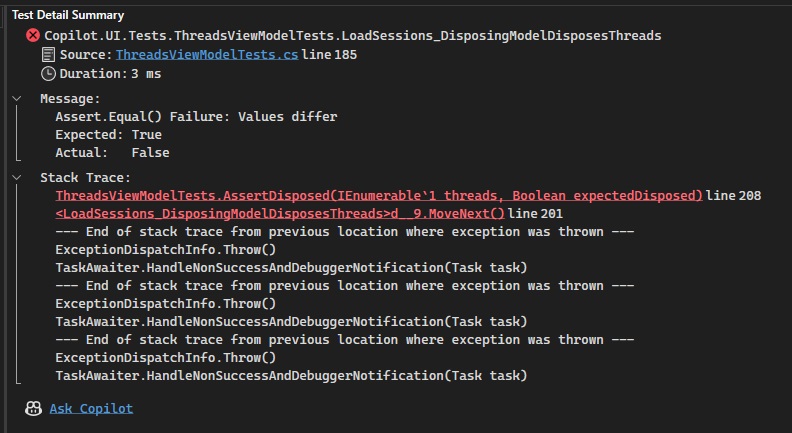
- Test failure Analysis: Copilot helps you debug and fix the failures of your unit tests. Copilot will provide you with useful information about the test failure, such as the assertion message, the expected and actual values, the source code, and possible solutions.
We want to hear from you!
We appreciate all the feedback you’ve provided so far as we’ve been creating Copilot, and are excited to see where this next wave of AI-assisted productivity takes you as you create great software. Please try the new features and share your feedback – just use Visual Studio Visual Studio “Send feedback” to send us your suggestions, feedback and issues for GitHub Copilot in Visual Studio.Post Updated on January 24, 2024 at 05:00PM
Thanks for reading
from devamazonaws.blogspot.com

Comments
Post a Comment