[MS] Bring your custom engine copilot from Azure OpenAI Studio to Microsoft Teams: now in public preview - devamazonaws.blogspot.com
Azure OpenAI announced many new capabilities for connecting to your data with Azure OpenAI at Microsoft Build 2024. Today, we are excited to announce that Azure OpenAI now offers a Deploy to a Teams app option in public preview, providing a new way to help developers connect their enterprise data with their custom engine copilots on Microsoft Teams. If you've been crafting your chat experience using Azure OpenAI Studio, you can now seamlessly bring your chat apps to Microsoft Teams. If you're eager to extend your chat experience from Azure OpenAI Studio to Teams, this option is perfect for you! This feature helps developers create a project source code with an integration of their configuration and data from Azure OpenAI Studio. You can connect your enterprise data from Azure AI Search, Azure Blob Storage, URL/web address, Azure Cosmos DB, Elasticsearch and ground your Azure OpenAI models on your data. This source code is powered by Teams AI library, which helps developers build conversational bots designed to harness the powerful capabilities of Large Language Models (LLMs) for seamless user interaction. Ready to bring your chat app with your data from Azure OpenAI Studio to Teams? Let's get started with just a few simple steps!
 2. Enter a name for your Teams app. Then, select Download.
 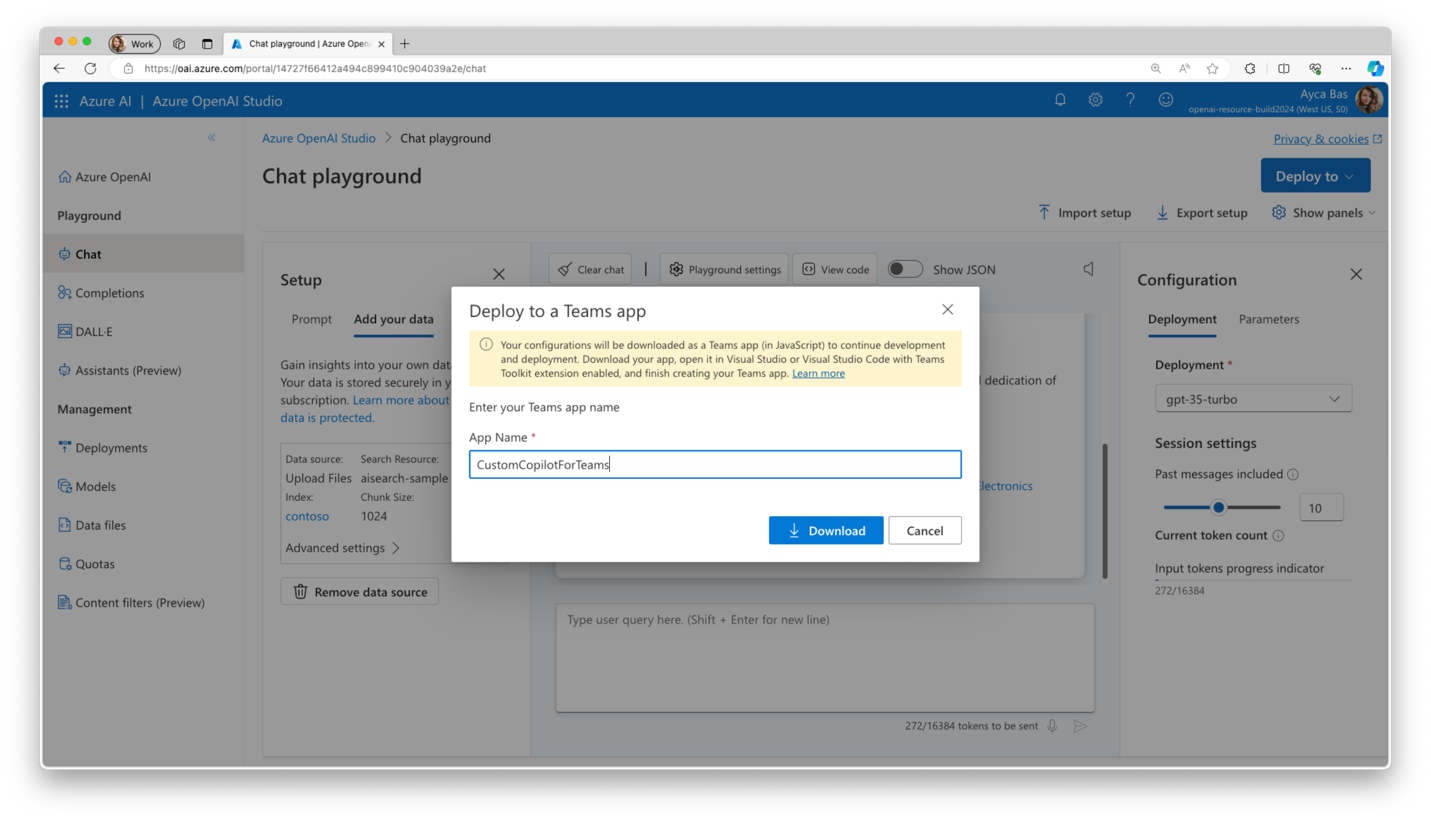 This will download a source code of your Teams app with integrated data.
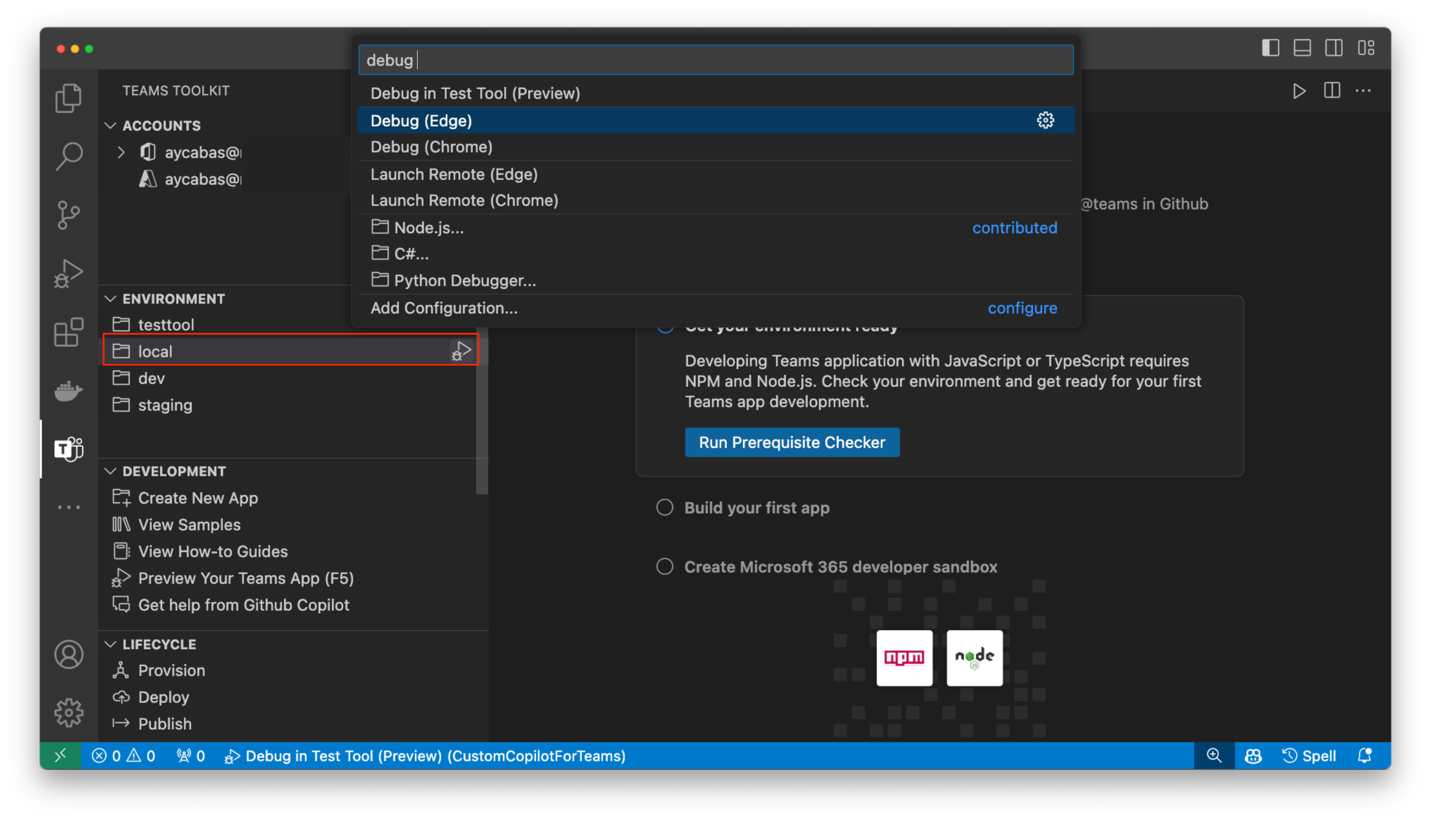
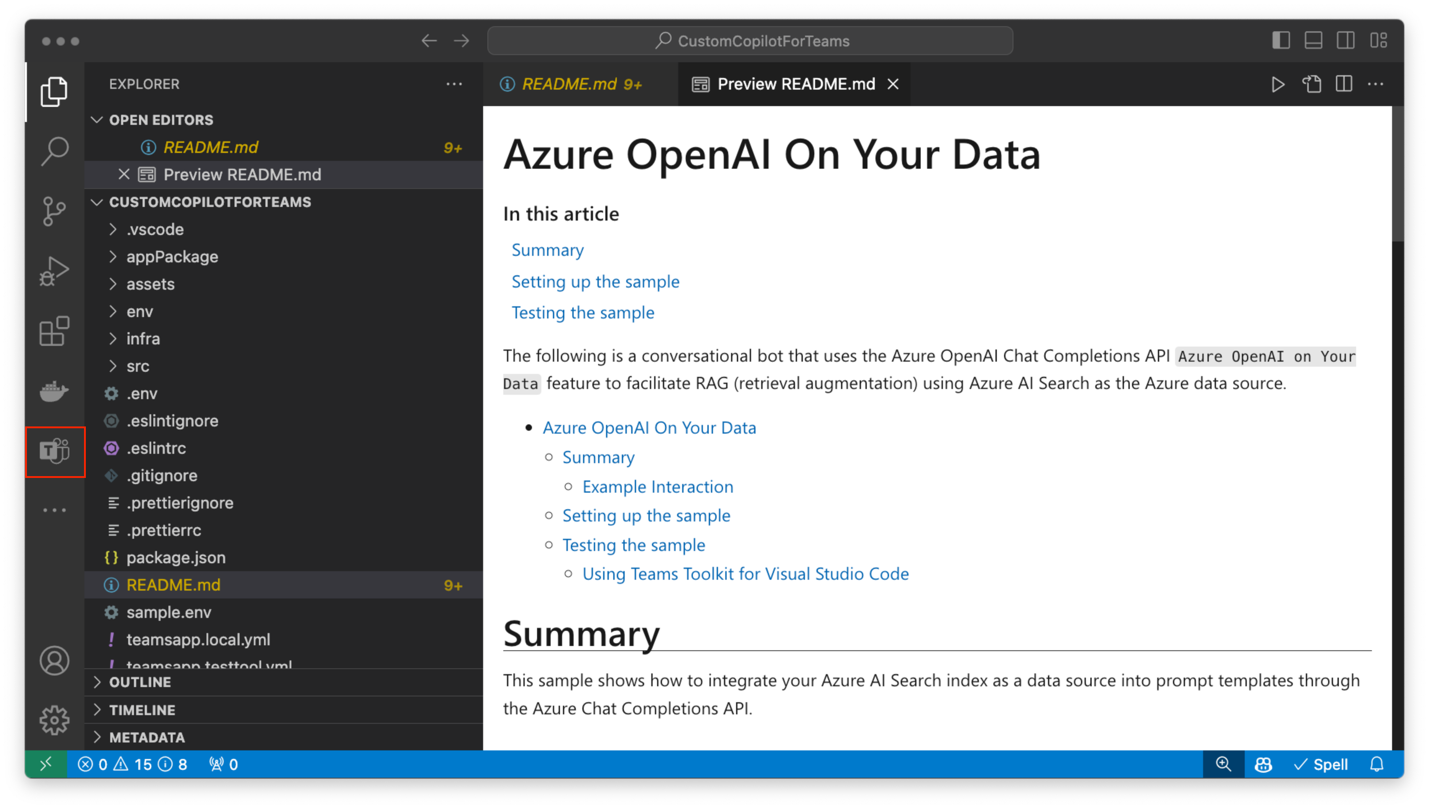 3. If you select API Key in data connection, navigate to src\prompts\chat\config.json in your project folder and place the API inside the authentication. 4. Sign in with your Microsoft 365 account in Teams Toolkit, select local environment, then choose Debug (Edge) or Debug (Chrome).
  5. Once your Teams app is provisioned and deployed, Microsoft Teams will open in your browser with your app. Select Add to add your app to a Teams personal chat. 6. Enjoy chatting with your data on Teams by asking questions related to your data! 🎉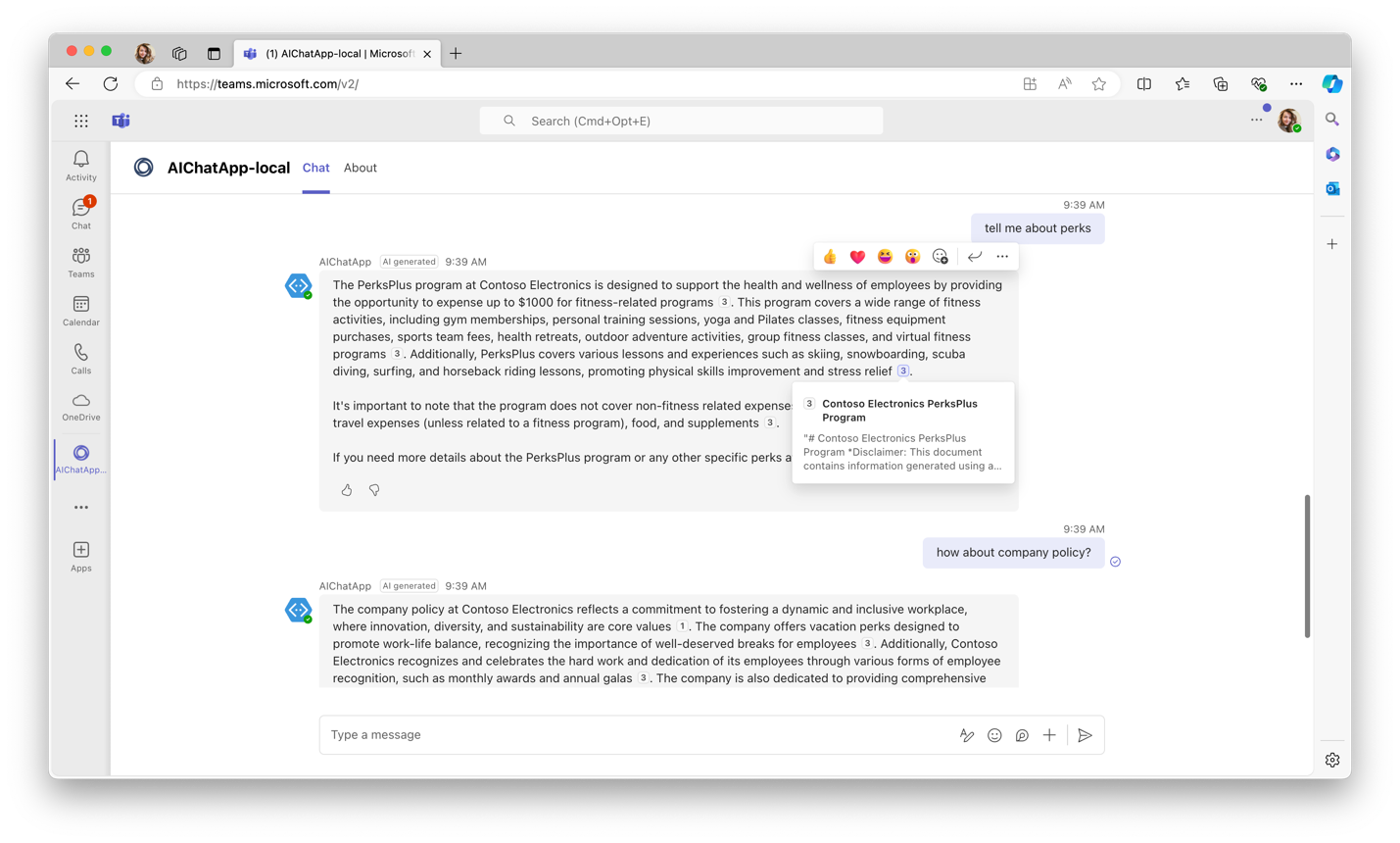
Post Updated on July 25, 2024 at 04:36PM
Thanks for reading
from devamazonaws.blogspot.com
Start from Azure OpenAI Studio, chat on Teams
Here are the quick steps to craft your chat experience in Azure OpenAI Studio and seamlessly integrate it into Teams.Pre-requisites
- Visual Studio Code
- Teams Toolkit
- Node.js (supported versions 16, 18)
- A Microsoft 365 developer account
- Azure CLI
- Run az login in the terminal of Visual Studio Code (select the account with Azure subscription)
- An Azure OpenAI Service with gpt-3.5-turbo or higher model deployed.
- Cognitive Services OpenAI User role assigned to the Azure OpenAI resource you prefer to use.
Configure your data in the chat playground
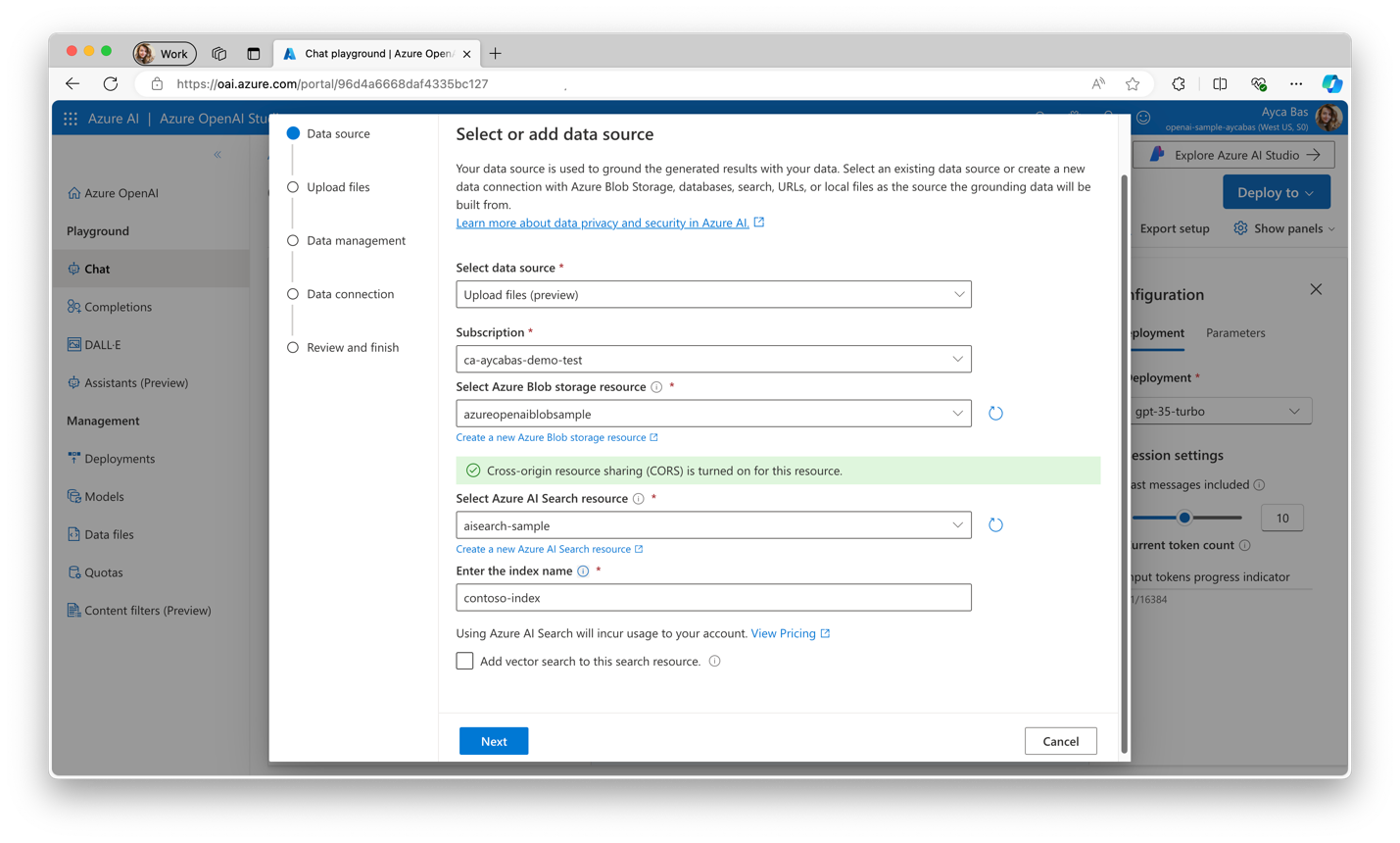
Before proceeding with the "Deploy to a Teams app" option, ensure that you have designed your chat experience on Azure OpenAI Studio.- In Azure OpenAI Studio, navigate to Chat and Add your data, then Add a data source.
- Select Upload files (preview), and set up "Azure Blob storage" and "Azure AI Search" resources. Enter the index name of your choice, then select Next.
- Drag and drop the files you prefer to use as your data in the chat app. Select Upload files, then Next.
- Keep the "Data management" configuration as default, select Next.
- Select the Azure resource authentication type of your choice in the "Data connection" step, select Next. Then, Save and close.
Bring your chat experience to Teams
- When ready, select Deploy to in the Chat playground and select A new Teams app (preview) option.
2. Enter a name for your Teams app. Then, select Download. This will download a source code of your Teams app with integrated data.
Test your app on Teams
1. Unzip your downloaded project and open it in Visual Studio Code. 2. Explore the project source code, then select Teams Toolkit from the left side menu. 3. If you select API Key in data connection, navigate to src\prompts\chat\config.json in your project folder and place the API inside the authentication. 4. Sign in with your Microsoft 365 account in Teams Toolkit, select local environment, then choose Debug (Edge) or Debug (Chrome). 5. Once your Teams app is provisioned and deployed, Microsoft Teams will open in your browser with your app. Select Add to add your app to a Teams personal chat. 6. Enjoy chatting with your data on Teams by asking questions related to your data! 🎉
Next Steps
- Announcing New Capabilities for Azure OpenAI On Your Data
- https://aka.ms/AOAITeamsBlog
- Role-based access control for Azure OpenAI
- Deploy to a Teams app
- Provision your app
- Deploy to Azure
- Publish to Teams
Post Updated on July 25, 2024 at 04:36PM
Thanks for reading
from devamazonaws.blogspot.com

Comments
Post a Comment