[MS] MCP Registry and Allowlist Controls for Copilot in JetBrains and Eclipse Now in Public Preview - devamazonaws.blogspot.com
MCP registry and allowlist controls for GitHub Copilot in JetBrains IDEs and Eclipse are now available in public preview in nightly/pre-release builds. 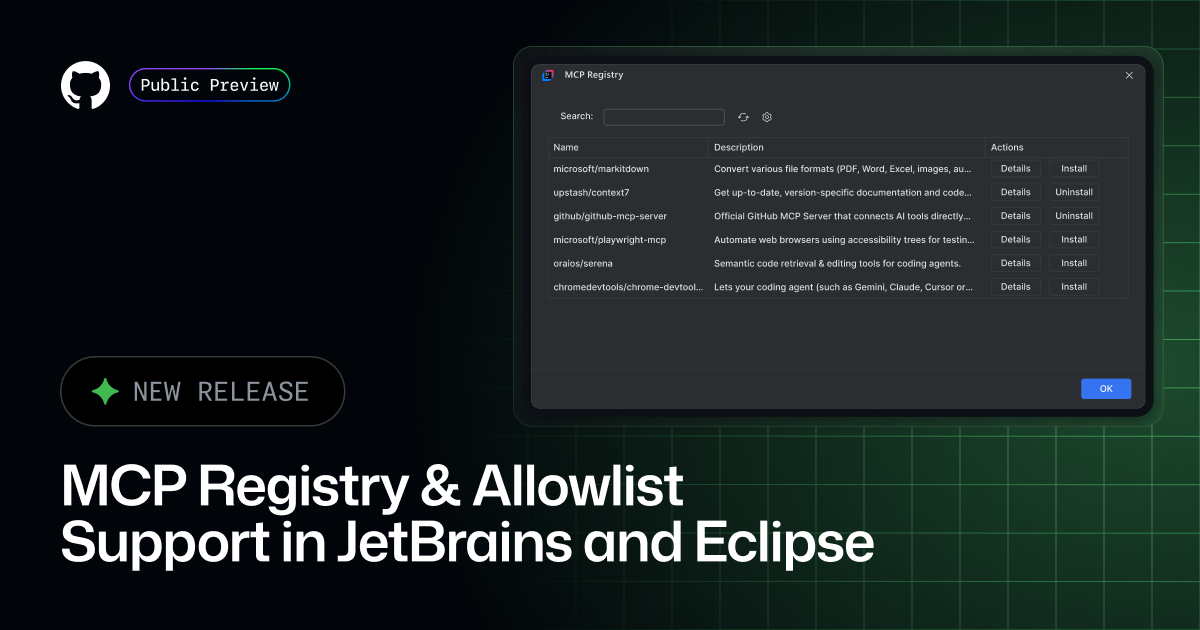
Post Updated on October 28, 2025 at 04:00PM
Thanks for reading
from devamazonaws.blogspot.com
What’s new
MCP Registry
An MCP Registry is a directory of Model Context Protocol (MCP) servers. For users of JetBrains IDEs and Eclipse, you can now configure your MCP Registry and browse available MCP servers directly within your IDE. This greatly streamlines setup and provides a seamless experience for discovering and managing MCP servers right from the editor.Allow List Controls
As an enterprise or organization owner, you can configure an MCP Registry URL along with an access control policy. These settings determine which MCP servers your developers can see and run in supported IDEs with GitHub Copilot. When combined with the Registry only policy, it prevents any usage of MCP servers (at runtime) that are not defined in the internal registry.Set up your MCP Registry
In JetBrains IDEs:- Sign in and open Copilot chat, then click the MCP Registry icon.
- After the MCP Registry loads, you can browse, install, or uninstall MCP servers from the registry.
- Optionally, click Configure MCP Registry URL icon and specify your preferred registry endpoint, or use the default provided.
- In the top bar of Copilot chat panel, click the MCP Registry icon.
- After the MCP Registry loads, you can browse, install, or uninstall MCP servers from the registry.
- Optionally, click Configure Registry URL icon and specify your preferred registry endpoint, or use the default provided.
For admins: configure Allowlist Controls
Allow List Controls are available only for Copilot Business and Copilot Enterprise customers.- In GitHub Enterprise settings → AI Controls tab → MCP (or at the org level: Organization settings → Policies → Copilot → Policies).
- Enable MCP servers in Copilot.
- Add your MCP Registry URL.
- Choose enforcement mode:
- Allow all (default): Any MCP server can run; registry servers appear as recommended.
- Registry only: Only servers from your registry can run; others are blocked at runtime with a clear warning.
Try it out
You can try these new features today in the nightly release of Copilot for JetBrains, and the pre-release versions of Copilot for Eclipse. Please install from: You will also need to have a valid Copilot license.Share your feedback
We value your feedback! Share your experience through the following channels: Note: These features are currently in preview and are subject to change.Post Updated on October 28, 2025 at 04:00PM
Thanks for reading
from devamazonaws.blogspot.com

Comments
Post a Comment