[MS] What’s New for C++ Developers in Visual Studio 2026 (18.7 – 18.10) - devamazonaws.blogspot.com
Over the past few months, we have continued shipping monthly Visual Studio 2026 releases, delivering improvements across all stages of the development cycle. In this blog post, we'll recap everything that changed from version 18.7 through 18.10 (released this month) that is relevant for C++ developers. This includes new tools for maintaining and navigating C++ projects, along with Git, GitHub Copilot, and debugging improvements that support the way large native codebases are built.
Some headlines include the GitHub Copilot modernization experience (now generally available) to guide you through MSVC upgrades, a deeper semantic index to accelerate code navigation, discoverable MSVC Build Tools versions across installations, and support for Git worktrees and submodules directly in the IDE.
For the previous set of updates, see What's New for C++ Developers in Visual Studio 2026 versions 18.1 through 18.6.
 To enable the feature, open Tools > Options > Languages > C/C++ > IntelliSense > Browsing & navigation > Whole codebase semantic index, then enable faster code navigation and colorization. Learn more in Faster Code Navigation and GitHub Copilot Tools with Whole Codebase Indexing.
 Ask Copilot Chat to “make my build faster”. The agent captures a baseline, proposes an optimization, measures the result, and rolls back changes that do not help. If a change is not beneficial in a clean build, the agent can test a comparable iterative build before deciding whether to keep it.
 For a conversational review, switch to the Git agent in GitHub Copilot Chat. Ask it to review uncommitted work, select the Copilot review control in Git Changes, or attach a commit in chat. You can also start this review from the post-commit infobar or from a commit in the Git Repository window. Findings appear inline and in a navigable list, and you can continue the conversation to investigate a finding or request a suggested fix.
Visual Studio also provides a local commit-review workflow. Enable Review Git changes locally and provide suggestions from comments under Tools > Options > GitHub > Copilot > Source Control Integration, then right-click a commit in the Git Repository window and select Review Commit. You can select two commits to review the range between them. These reviews remain local to the Visual Studio session. Both review workflows support GitHub and Azure DevOps repositories.
Copilot review is another source of feedback, not a replacement for compiler diagnostics, Code Analysis, tests, or human review. It is most useful when you give it a clear scope, such as reviewing ownership changes, thread synchronization, error handling, or API usage before opening a pull request.
The broader pull-request experience also lets you inspect changes without checking out the branch, comment and resolve threads, review commits, approve changes, and complete or merge the pull request from Visual Studio. For a walkthrough, see Review Pull Requests Without Leaving Visual Studio.
For a conversational review, switch to the Git agent in GitHub Copilot Chat. Ask it to review uncommitted work, select the Copilot review control in Git Changes, or attach a commit in chat. You can also start this review from the post-commit infobar or from a commit in the Git Repository window. Findings appear inline and in a navigable list, and you can continue the conversation to investigate a finding or request a suggested fix.
Visual Studio also provides a local commit-review workflow. Enable Review Git changes locally and provide suggestions from comments under Tools > Options > GitHub > Copilot > Source Control Integration, then right-click a commit in the Git Repository window and select Review Commit. You can select two commits to review the range between them. These reviews remain local to the Visual Studio session. Both review workflows support GitHub and Azure DevOps repositories.
Copilot review is another source of feedback, not a replacement for compiler diagnostics, Code Analysis, tests, or human review. It is most useful when you give it a clear scope, such as reviewing ownership changes, thread synchronization, error handling, or API usage before opening a pull request.
The broader pull-request experience also lets you inspect changes without checking out the branch, comment and resolve threads, review commits, approve changes, and complete or merge the pull request from Visual Studio. For a walkthrough, see Review Pull Requests Without Leaving Visual Studio.
 You can create a worktree from an existing branch, a new branch, or a commit, then open it in the current window or a separate Visual Studio instance. Worktrees appear alongside branches and can be removed from the same window when they are no longer needed.
 Other Git improvements include a multi-file summary diff for working changes, commits, and pull requests, comparison of a historical file version with the working tree, pull-request activity timelines, and automatic completion after required approvals and policies pass. Read the Visual Studio August update for the full set.
Post Updated on September 14, 2026 at 07:38AM
Thanks for reading
from devamazonaws.blogspot.com
C++ reliability improvements
Across Visual Studio 2026 versions 18.7 through 18.10, we fixed 272 C++ bugs reported through Developer Community and internal testing. These fixes include C++ IntelliSense diagnostics and include resolution, compiler and code-generation issues, astd::regex regression, debugger stability, and a C++ Solution Explorer context-menu issue.
Modernize and manage C++ projects
Upgrade MSVC projects with GitHub Copilot
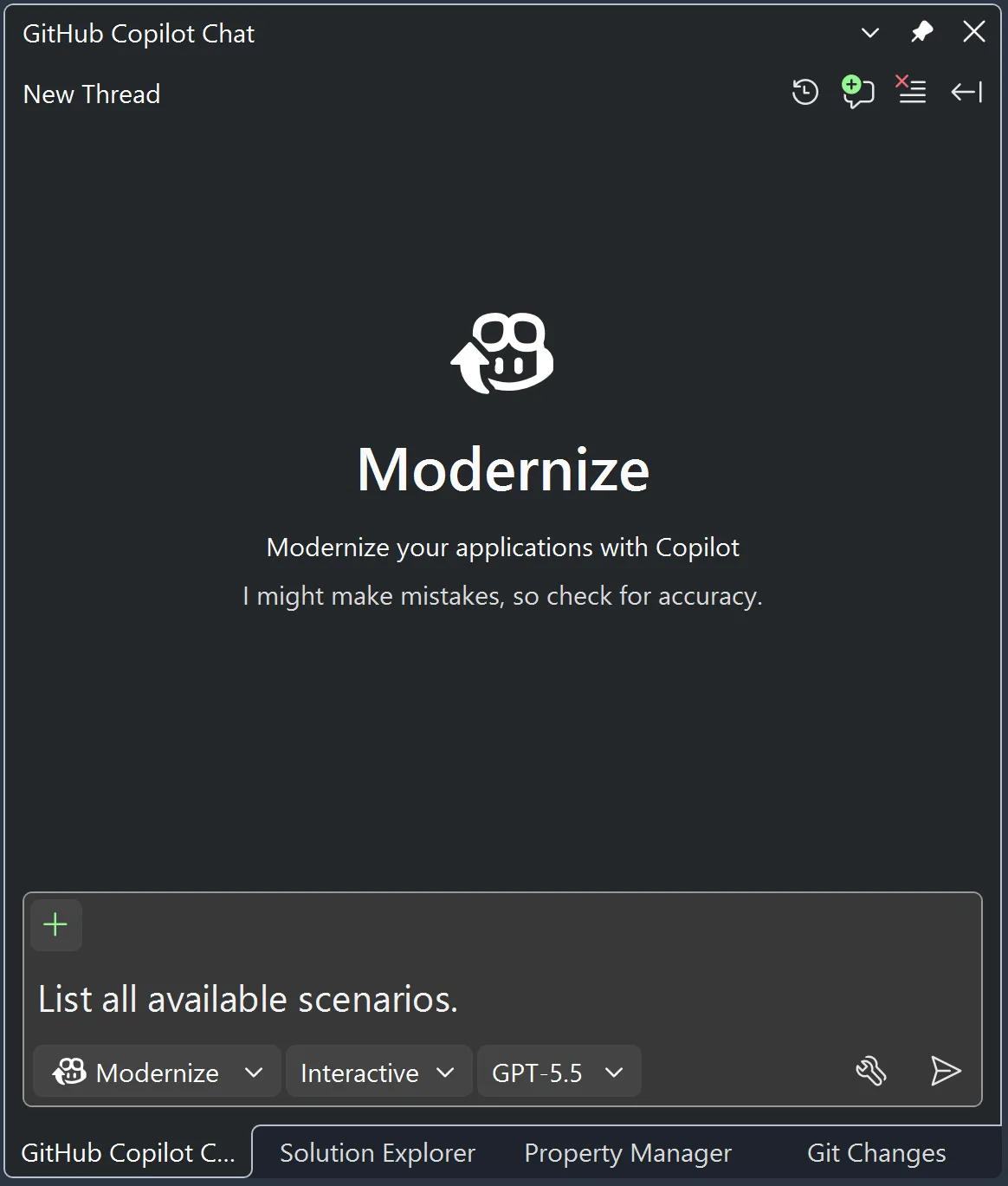
GitHub Copilot modernization for C++ is now generally available. This modernization agent helps upgrade MSBuild and CMake projects to a newer version of the Microsoft C++ (MSVC) Build Tools. It assesses the codebase, builds an upgrade plan, updates project settings and source code, and validates fixes for issues such as stricter conformance, deprecated standard library functions, new warnings, and linker errors. The agent has two flow modes. Automatic mode proceeds through assessment, planning, and execution with less intervention. Guided mode pauses between stages so you can review the scope and proposed approach before changes are applied. You can switch modes as the upgrade progresses. Before you start, use the Visual Studio Installer to select the GitHub Copilot modernization optional component. You also need a GitHub Copilot subscription and an MSBuild or CMake C++ project. Right-click a solution or project in Solution Explorer and select Modernize or enter @Modernize in GitHub Copilot Chat. For MSBuild projects that reference an unavailable MSVC version, the Setup Assistant can also offer to launch the modernization agent after retargeting the project. The agent focuses on issues caused by the MSVC upgrade and adapts its task list when one fix reveals another problem. You remain in control of the scope and can stop, redirect, or resume the work.
Use PackageReference in native C++ projects
Visual Studio 2026 introduced experimental support for NuGet PackageReference in native .vcxproj projects. Package references live directly in the project file, support transitive dependency resolution, use NuGet's global package cache, and can be conditioned by configuration or platform with normal MSBuild syntax. Enable the experience in a project or Directory.Build.props:<Project>
<PropertyGroup>
<EnableNativePackageReferenceSupport>true</EnableNativePackageReferenceSupport>
</PropertyGroup>
</Project><ItemGroup>
<PackageReference
Include="Microsoft.Windows.CppWinRT"
Version="2.0.240405.15" />
</ItemGroup>Discover pinned MSVC Build Tools versions across installations
Visual Studio 2026 can now locate an exact pinned MSVC Build Tools version (major.minor.patch) in another Visual Studio or standalone Build Tools installation. This helps teams update the IDE independently while retaining a known-good compiler version for reproducible local and continuous integration builds. Previously, Visual Studio only searched other installations for a matching toolset if your current install had no toolset installed at all for your target platform toolset version. This change removes this restriction. Opt in withEnableVCToolsVersionDiscoveryand specify the required VCToolsVersion:
<PropertyGroup>
    <EnableVCToolsVersionDiscovery>true</EnableVCToolsVersionDiscovery>
    <VCToolsVersion>14.43.34604</VCToolsVersion>
</PropertyGroup>VCToolsInstallDir. This gives teams two complementary paths: use the modernization agent when it is time to upgrade or pin an exact MSVC Build Tools version when compatibility and repeatability are the priority. See the Visual Studio July update post for more.
Preview the next MSVC Build Tools updates
Work on MSVC Build Tools version 14.52 continued with monthly updates to the preview builds shipping in the Visual Studio Stable Channel (and even faster updates in the Insiders Channel). In the July and August previews, frontend and modules updates include support for default-initializednew[] expressions in constant evaluation with modules, more robust argument-dependent lookup and module serialization, and clearer diagnostics for calling-convention mismatches, incompatible compiler options, and unusable compiled libraries.
The backend added Armv9.2 LUTI2 support and improved ARM64 vectorization, load pairing, and instruction selection. x64 and x86 updates expanded APX instruction selection and improved conditional comparisons, vector constants, and tail calls. The optimizer gained additional loop, induction-variable, devirtualization, and expression-reassociation improvements. The linker and debugging tools also improved incremental linking, PDB growth and determinism, large debug-information streams, and module type merging.
AddressSanitizer can now use the MSVC disassembler as a fallback instruction-length decoder, reducing unrecognized-instruction failures, and diagnoses incompatible use with /clr. These previews also include Code Analysis reliability improvements and fixes for compiler crashes, miscompilations, module regressions, and invalid AVX-512 code generation.
For the detailed change lists, see the July 2026 and August 2026 MSVC Build Tools preview posts. You should also look at the STL Changelog for a full list of standard library improvements.
Navigate large C++ codebases faster
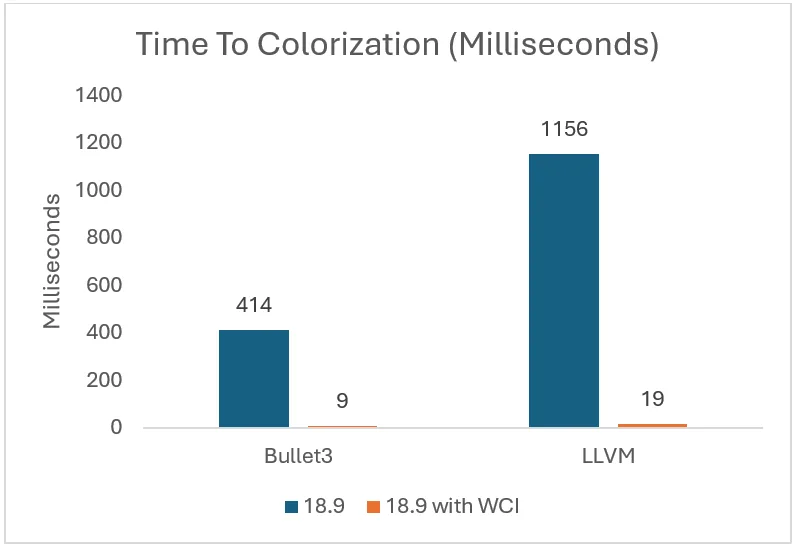
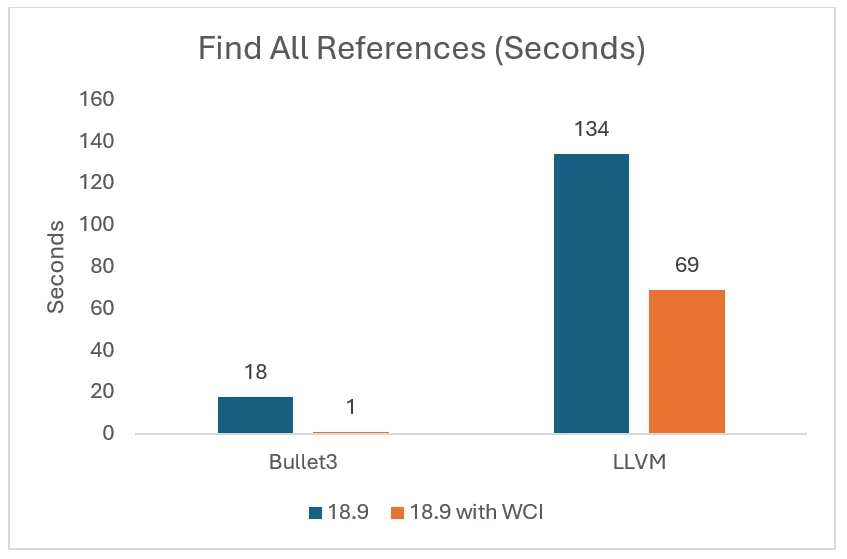
Whole Codebase Indexing is a preview feature that adds richer symbol-use information to the C++ browse database. Instead of repeatedly computing some relationships on demand, Visual Studio can reuse semantic data that has been indexed as you work. The deeper index improves features that use the IntelliSense engine, including semantic colorization, Go to Definition, and Find All References. It also gives Copilot'sfind_symbol tool faster access to these code navigation features and enables CodeLens references for C++. In Microsoft's testing with Bullet3 and LLVM, many navigation and colorization scenarios improved by 2x or more, although results and indexing costs vary with the codebase.
To enable the feature, open Tools > Options > Languages > C/C++ > IntelliSense > Browsing & navigation > Whole codebase semantic index, then enable faster code navigation and colorization. Learn more in Faster Code Navigation and GitHub Copilot Tools with Whole Codebase Indexing.
Optimize the builds you run every day
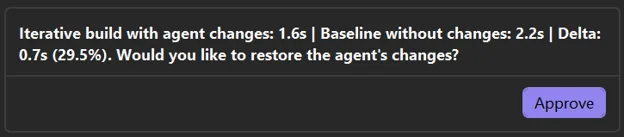
GitHub Copilot build performance for Windows now evaluates iterative builds as well as clean builds. That distinction matters because an optimization such as a precompiled header can make a full rebuild slightly slower while improving the edit-build-debug loop that developers repeat throughout the day.
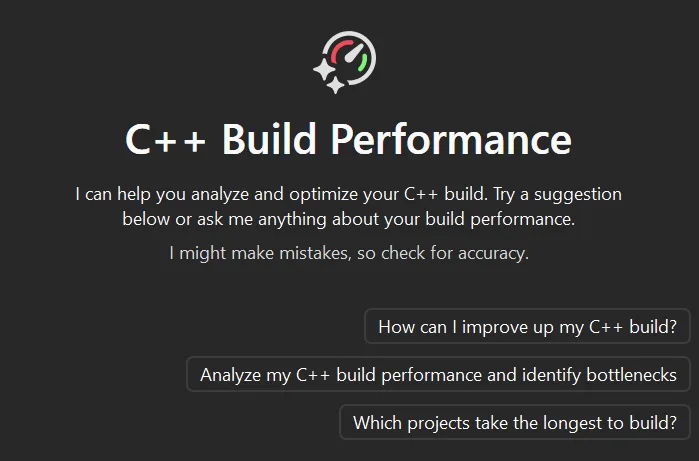
Ask Copilot Chat to “make my build faster”. The agent captures a baseline, proposes an optimization, measures the result, and rolls back changes that do not help. If a change is not beneficial in a clean build, the agent can test a comparable iterative build before deciding whether to keep it.
Review changes with GitHub Copilot
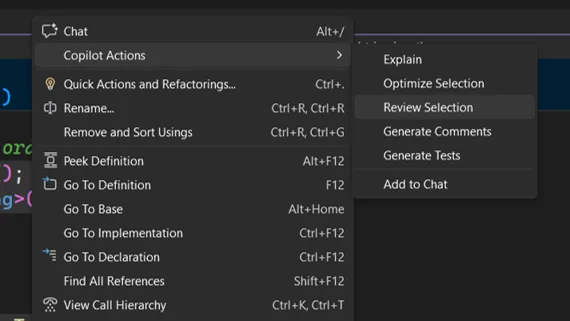
Copilot review now scales from a selected block of code to working changes, commits, and pull requests. Select any block of code in the editor and choose Copilot Actions > Review Selection for a focused review. Findings appear as inline comments so you can inspect and address them in context.
For a conversational review, switch to the Git agent in GitHub Copilot Chat. Ask it to review uncommitted work, select the Copilot review control in Git Changes, or attach a commit in chat. You can also start this review from the post-commit infobar or from a commit in the Git Repository window. Findings appear inline and in a navigable list, and you can continue the conversation to investigate a finding or request a suggested fix.
Visual Studio also provides a local commit-review workflow. Enable Review Git changes locally and provide suggestions from comments under Tools > Options > GitHub > Copilot > Source Control Integration, then right-click a commit in the Git Repository window and select Review Commit. You can select two commits to review the range between them. These reviews remain local to the Visual Studio session. Both review workflows support GitHub and Azure DevOps repositories.
Copilot review is another source of feedback, not a replacement for compiler diagnostics, Code Analysis, tests, or human review. It is most useful when you give it a clear scope, such as reviewing ownership changes, thread synchronization, error handling, or API usage before opening a pull request.
The broader pull-request experience also lets you inspect changes without checking out the branch, comment and resolve threads, review commits, approve changes, and complete or merge the pull request from Visual Studio. For a walkthrough, see Review Pull Requests Without Leaving Visual Studio.
Work across large Git repositories
Keep multiple branches active with worktrees
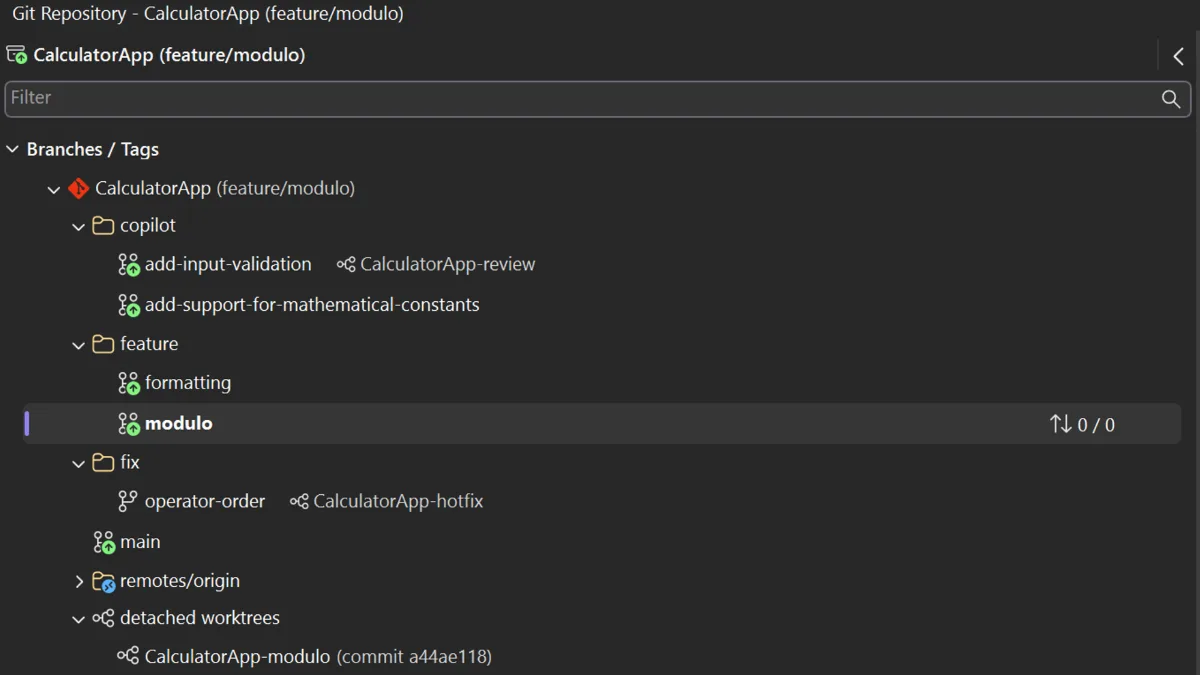
Visual Studio 2026 added integrated Git worktree management. A worktree gives another branch its own working directory, so you can keep some half-finished C++ changes intact while investigating a bug or preparing a fix on another branch. In the Git Repository window, right-click a branch and select New Worktree From.
You can create a worktree from an existing branch, a new branch, or a commit, then open it in the current window or a separate Visual Studio instance. Worktrees appear alongside branches and can be removed from the same window when they are no longer needed.
Manage submodules without leaving Visual Studio
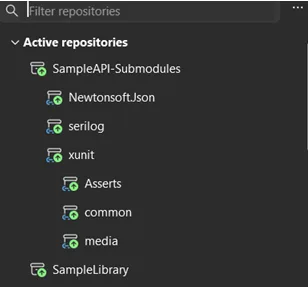
Submodules are also first-class objects in Visual Studio 2026. The Git Repository window has a dedicated Submodules section, Git Changes shows their state, and the repository picker displays the relationship between the parent repository and its submodules. You can add, update, remove, discover, and navigate submodules in the IDE. They are read-only by default, which helps prevent accidental edits to a dependency. To work inside them, go to Tools > Options > Source Control > Git, find Automatically activate multiple repositories, and select Yes, include submodules.
Other Git improvements include a multi-file summary diff for working changes, commits, and pull requests, comparison of a historical file version with the working tree, pull-request activity timelines, and automatic completion after required approvals and policies pass. Read the Visual Studio August update for the full set.
Debug C++ applications
Attach to processes in Podman containers
Visual Studio 2026 extends Attach to Process to Podman containers. Start the container, open Debug > Attach to Process, choose Podman as the connection type, select Find, and then choose the process you want to debug. The experience supports both .NET and C++ containers without additional debugger configuration.Investigate bugs with focused tests
The Debugger Agent has also added a test-driven investigation workflow. Starting from an issue, stack trace, or intermittent failure, it can create or identify a focused test, debug through the failure using runtime state, propose a fix, and rerun relevant tests. This builds on the agentic issue-to-resolution experience covered in the previous roundup. See The Visual Studio Debugger Agentic Workflow Gets a Test-Driven Upgrade for details.More control over Copilot
Share instructions and custom agents across an organization
Visual Studio 2026 added organization-level instructions and custom agents. GitHub organization and enterprise owners can publish shared agents for workflows such as build triage, dependency upgrades, portability checks, or code-review conventions. Visual Studio detects those agents and identifies their organization source in the agent picker. Organization-level instructions can express shared preferences, but they are not a policy-enforcement mechanism. If you’re an administrator, see Preparing to use custom agents in your organization or Preparing to use custom agents in your enterprise.Choose the right model and thinking effort
Model controls also provide more information about capabilities, context-window size, and cost. For supported models, you can choose low, medium, or high thinking effort. Lower effort suits straightforward questions, while higher effort can help with architecture, difficult template diagnostics, algorithms, or hard-to-reproduce concurrency issues.Bring your own model
Bring Your Own Model (BYOM) lets you connect that agent to a Microsoft Foundry deployment or use your own key with another supported provider, whether or not you are signed in to GitHub. The release notes also refer to this capability as Bring Your Own Key (BYOK). BYOM is available as a preview and supports Microsoft Foundry, OpenAI, Anthropic, and Ollama, including custom endpoints for OpenAI and Ollama. Model capabilities vary, and not every model supports every Agent Mode tool. Read Bring Your Own Model in Visual Studio for setup, provider, and governance details.Next Edit Suggestions Improvements
Long-distance next edit suggestions are now available. Copilot can suggest related edits elsewhere in the active file when Extended range suggestions are enabled under Tools > Options > Text Editor > Inline Suggestions.- Did you know? There is also a “Next edit suggestions eagerness” setting in Tools > Options, giving you control over how frequently these suggestions appear. Use the search box in the Options UI to find it fast.
Try Visual Studio 2026 and share your feedback
Download Visual Studio 2026 to try these new features and benefit from the latest bug fixes and performance improvements. Also check out the release notes for a full list of everything that’s new. Want to get ahead? Get a sneak peek at Visual Studio 2026 version 18.11 improvements now via the Insiders Channel. We want to hear how these changes work in real C++ projects. Report problems or suggest improvements through Help > Send Feedback in Visual Studio and visit Developer Community.Post Updated on September 14, 2026 at 07:38AM
Thanks for reading
from devamazonaws.blogspot.com

Comments
Post a Comment