[MS] Build locally with Azure SQL Database container, now in public preview - devamazonaws.blogspot.com
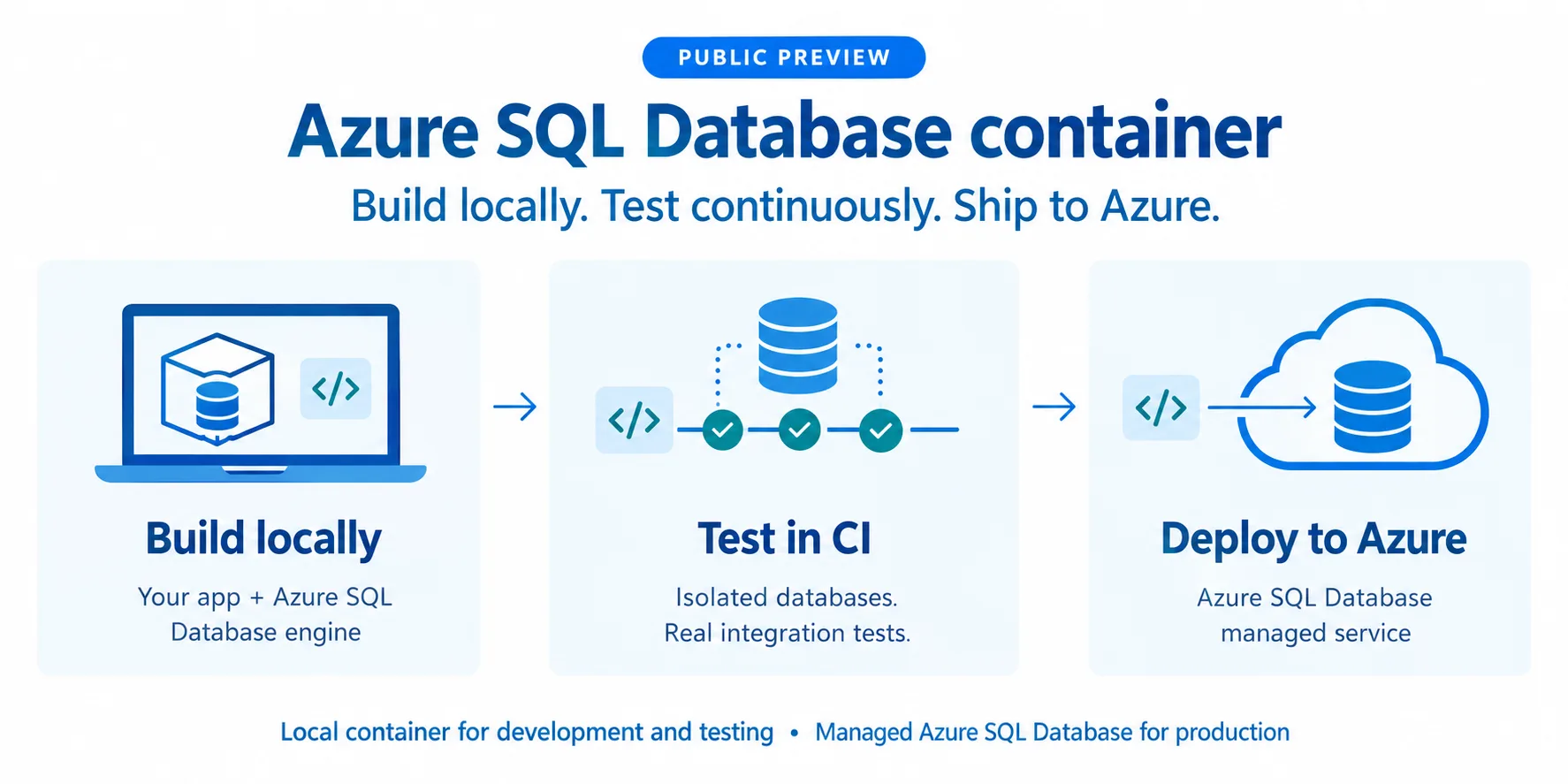
Azure SQL Database container: build locally, test continuously, ship to Azure.
Today at Microsoft Ignite, we’re announcing the public preview of Azure SQL Database container—bringing the Azure SQL Database engine into your local development workflow.
Build and test applications without provisioning a cloud database for every developer or test run. Run natively on x64 or ARM64, including Apple Silicon, and keep working offline after downloading the image. No Azure subscription is required for local development.
Learn more, find commands, coding-agent prompts, and application templates on the Azure SQL Developer Hub.
Post Updated on November 17, 2026 at 11:23PM
Thanks for reading
from devamazonaws.blogspot.com
Your database, part of your development workflow
Cloning a repository shouldn’t start a separate database onboarding project. With Azure SQL Database container, each developer can run an independent database, experiment without affecting teammates, and reproduce application issues locally. In CI, disposable databases let you test real queries, constraints, and transactions without sharing state across test runs. This is the Azure SQL Database engine - it brings Azure SQL Database behavior closer to your local environment, helping you build against the same exact engine and identify compatibility issues earlier. Keep using familiar drivers and frameworks, including Microsoft.Data.SqlClient, JDBC, Node.jsmssql, EF Core, Prisma, and SQLAlchemy.
Provision from VS Code or SSMS
Prefer a graphical setup? You can also provision the Azure SQL Database container through the latest MSSQL extension for Visual Studio Code or through SQL Server Management Studio (SSMS). Choose the workflow that fits your development environment, then connect and start building.Get started with Azure SQL Database container
You need a running Linux-container environment, such as Docker or Podman, with 2 CPU cores, 4 GB of runtime memory, and 10 GB of free disk space. These commands use Bash or Zsh and OpenSSL to generate a password; on Windows, run them inside WSL.1. Pull and run
docker pull mcr.microsoft.com/mssql/azure-sql-db-server:latest

export MSSQL_SA_PASSWORD="Aa1$(openssl rand -hex 16)"

docker run --name sqldb \
  -e "ACCEPT_EULA=Y" \
  -e "MSSQL_SA_PASSWORD=$MSSQL_SA_PASSWORD" \
  -p 127.0.0.1:1433:1433 \
  -v sqldb-data:/var/opt/mssql \
-d mcr.microsoft.com/mssql/azure-sql-db-server:latestsa account is for initial setup; use a least-privilege user for your application.
2. Wait for readiness and create your database
Follow the startup logs:docker logs -f sqldbdocker exec \
-e SQLCMDPASSWORD="$MSSQL_SA_PASSWORD" \
sqldb /opt/mssql-tools18/bin/sqlcmd \
-S localhost -U sa -C -b -d master \
-Q "IF DB_ID('appdb') IS NULL CREATE DATABASE appdb;"sqlcmd—no separate installation required.
3. Run your first query
docker exec \
  -e SQLCMDPASSWORD="$MSSQL_SA_PASSWORD" \
  sqldb /opt/mssql-tools18/bin/sqlcmd \
  -S localhost -U sa -C -b -d appdb \
  -Q "SELECT DB_NAME() AS DatabaseName,
SERVERPROPERTY('EngineEdition') AS EngineEdition;"appdb and an engine edition of 5.
Select your database in the connection string or with -d appdb, rather than switching with USE. The -C flag trusts the local self-signed certificate; it is not a production recommendation.
Connect your application to localhost,1433, select appdb, and start building.
Set up Azure SQL Database container with your coding agent
Install the Microsoft SQL skills:npx skills add microsoft/microsoft-sqlConnect this application to a local Azure SQL Database container.
Inspect my stack, use the public MCR image, wait for SQL readiness,
and create an application database.
Configure the connection securely, add sample data, and verify
the application can read and write records. Keep credentials out
of source control and ask before destructive changes.Test applications with Azure SQL Database container
Use the container to exercise the behaviors your application depends on: concurrent updates, transaction boundaries, permissions, query results, and data integrity. For CI, start an isolated database, wait for a successful SQL connection, load deterministic test data, and run your integration tests. Pin the image version or digest to keep runs repeatable. You can also explore AI capabilities, including native vector data and vector-distance queries, alongside your application’s relational data. External model calls still require connectivity and may incur charges.Take your application to Azure
When you’re ready, deploy your application and schema to Azure SQL Database and update the connection configuration for the Azure endpoint and authentication. The container is for development and testing—not production or a complete replica of the managed service. Validate your application in Azure before deploying. See the preview FAQ for details.Start building
Try it with an application you already have—or use a Dev Hub template to build something new.- Pull the image from Microsoft Container Registry
- Get commands and prompts on the Azure SQL Developer Hub
- Share feedback and ask questions
Post Updated on November 17, 2026 at 11:23PM
Thanks for reading
from devamazonaws.blogspot.com

Comments
Post a Comment